
GoHighLevel Login: Fast Access and Troubleshooting for 2026
When you are running a business, every second counts. You don’t want to spend your morning fighting with a sign-in screen. The GoHighLevel login is your gateway to your funnels, CRM, and automated sales team. Whether you are an agency owner or a client, knowing how to access your dashboard quickly is the first step to a productive day.
This guide covers the best links, mobile tips, and how to fix common login errors in 2026, ensuring you can focus on growing your business rather than troubleshooting access issues.
Official Login Links for Desktop and Mobile
In 2026, there are three main ways to reach your GoHighLevel dashboard, depending on your role:
The Main App
Visit app.gohighlevel.com for the standard experience. This portal is ideal for individuals who manage their own account without an agency intermediary. Bookmarking this link ensures you can always access your account quickly without searching Google every time, which may lead to outdated resources or ads.
The White‑Label Portal
If you work with an agency, they likely provide a custom domain such as app.agencyname.com. Check your welcome email for the specific link assigned to you.
This white‑label portal gives a branded experience and ensures your data stays secure within your agency’s environment. For a deeper comparison of GoHighLevel and other tools, see our WooSender vs GoHighLevel guide.
The Mobile App
Download the HighLevel app on iOS or Android. In 2026, the app supports FaceID and Fingerprint login for faster and secure access on the go. Bookmark the app page or add a home screen shortcut to stay one tap away from your dashboard.
Pro Tip: Avoid searching Google every time for login. Bookmark your GoHighLevel login page in your browser to ensure you’re always one click away from your data.
Troubleshooting GoHighLevel Login Issues in 2026
Even the best software can have a bad day. If you find yourself stuck at the sign‑in screen, don’t panic. Most GoHighLevel login problems are caused by minor issues that are easy to fix with a few steps.
Common Fixes:
- Clear Your Cache
Over time, your browser stores old data that can “clog” the login page. Clearing your browser’s Site Data for HighLevel usually resolves this error quickly. - Check Your Permissions
If you can log in but cannot see your data, your admin may have changed your access level. Reach out to your agency owner to verify your permissions and ensure your account has the correct dashboard visibility. - Use Incognito Mode
If the login page fails to load, try opening it in a private window. If it works there, one of your browser extensions is likely blocking the site. - 2FA Delays
Two-Factor Authentication (2FA) is mandatory for security in 2026. If you aren’t receiving your code, check your spam folder or confirm your phone number in the My Staff settings.
If these steps don’t work, visit the GoHighLevel support portal. They have a live 24/7 team that can help you recover your account if you’re locked out. You can also explore tailored automation and CRM services with our GoHighLevel Automation CRM Services page.
Quick Fixes for Common Errors
| Error Message | Likely Cause | Solution |
|---|---|---|
| “User Does Not Exist” | Wrong email or typo | Check your welcome email for the exact login email. |
| “Invalid Credentials” | Password error | Use the “Forgot Password” link to reset it. |
| Page is Stuck Loading | Browser cache conflict | Clear cookies or try Google Chrome. |
| “Security Code Not Sent” | SMS/Email delay | Check spam folder or ask admin to verify your phone number. |
| Dashboard is Blank | Permission restricted | Contact your agency admin to enable your view. |
This table helps users self-diagnose login issues and resolve common errors quickly.
Security Best Practices for 2026
Your CRM holds your most valuable data. Protecting your GoHighLevel login is as crucial as securing your bank account. Hackers are getting smarter, so staying ahead is critical.
- Enable Enhanced Account Security: Force every user to use strong passwords and 2FA.
- Never Share Login Details: Instead, create separate users for team members, which allows you to track changes securely.
- Mind Your Login Environment: Avoid public computers; if you must use one, always open an Incognito window and log out afterward.
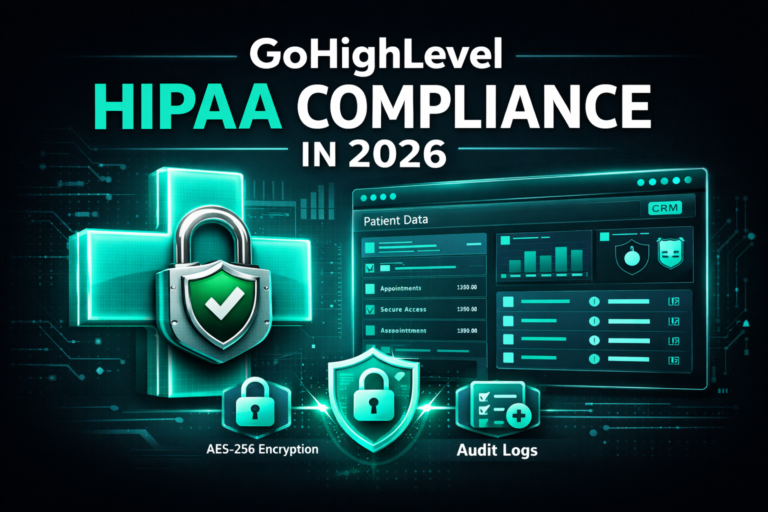
A secure GoHighLevel login ensures that your leads and reputation remain safe from prying eyes. For advanced compliance concerns — especially if you handle sensitive data — review our GoHighLevel HIPAA Compliance resource to stay secure and compliant.
The “Login As” Feature for Admins
Agency owners have a special tool called “Login As”, allowing you to access a client’s account without needing their password. In 2026, this is the fastest way to troubleshoot a client’s funnel or review conversations without interruptions.
To use this:
- Navigate to your Agency Team settings.
- Click the Login As button next to the user’s name.
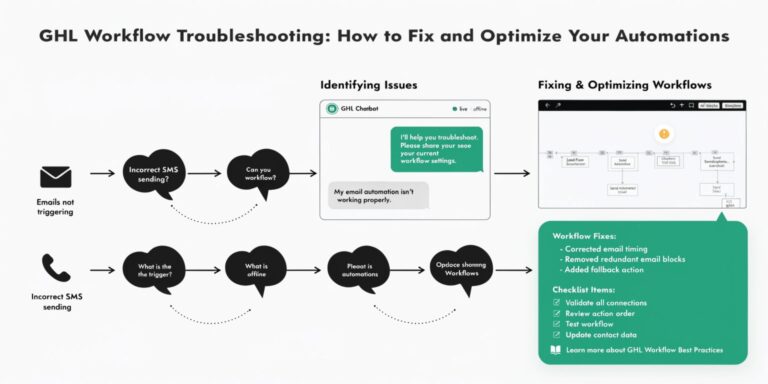
This approach provides high-level support efficiently while keeping the GoHighLevel login process secure and professional. For more on enhancing workflows and automations, our GoHighLevel Automation CRM Services guide offers a deeper dive into structured optimization.
Frequently Asked Questions (FAQ)
Can I log in from two different computers at once?
Yes, multiple sessions are allowed. For security, a 2FA code may be required if logging in from a new location or IP address.
What browser works best for the login?
Google Chrome is recommended in 2026. Safari and Firefox work, but Chrome offers the most optimized experience.
I forgot my password, and the reset link isn’t coming.
Check your Promotions or Spam folders. If it’s still missing, add noreply@main.ghl.com to your safe senders list.
How do I log in if I’m a client of an agency?
Use the custom URL provided by your agency. If unavailable, try app.gohighlevel.com with your registered email.
Is there a Single Sign-On (SSO) option?
Yes. In 2026, GoHighLevel supports SSO for enterprise accounts, allowing login with Google or Microsoft credentials. See our GoHighLevel HIPAA Compliance page for additional secure login considerations.
Conclusion: Get Back to Business
Don’t let tech hurdles slow you down. By following these steps, your GoHighLevel login experience will be smooth, secure, and reliable. Bookmark your portal, keep 2FA active, and always use a modern browser. If you’re still having trouble, help is just a click away through your admin or the support team. Your business is waiting.
For agencies seeking full infrastructure setup, including automation, CRM optimization, and compliant workflows, our GoHighLevel Automation CRM Services and other expert guides can help build your success in 2026.