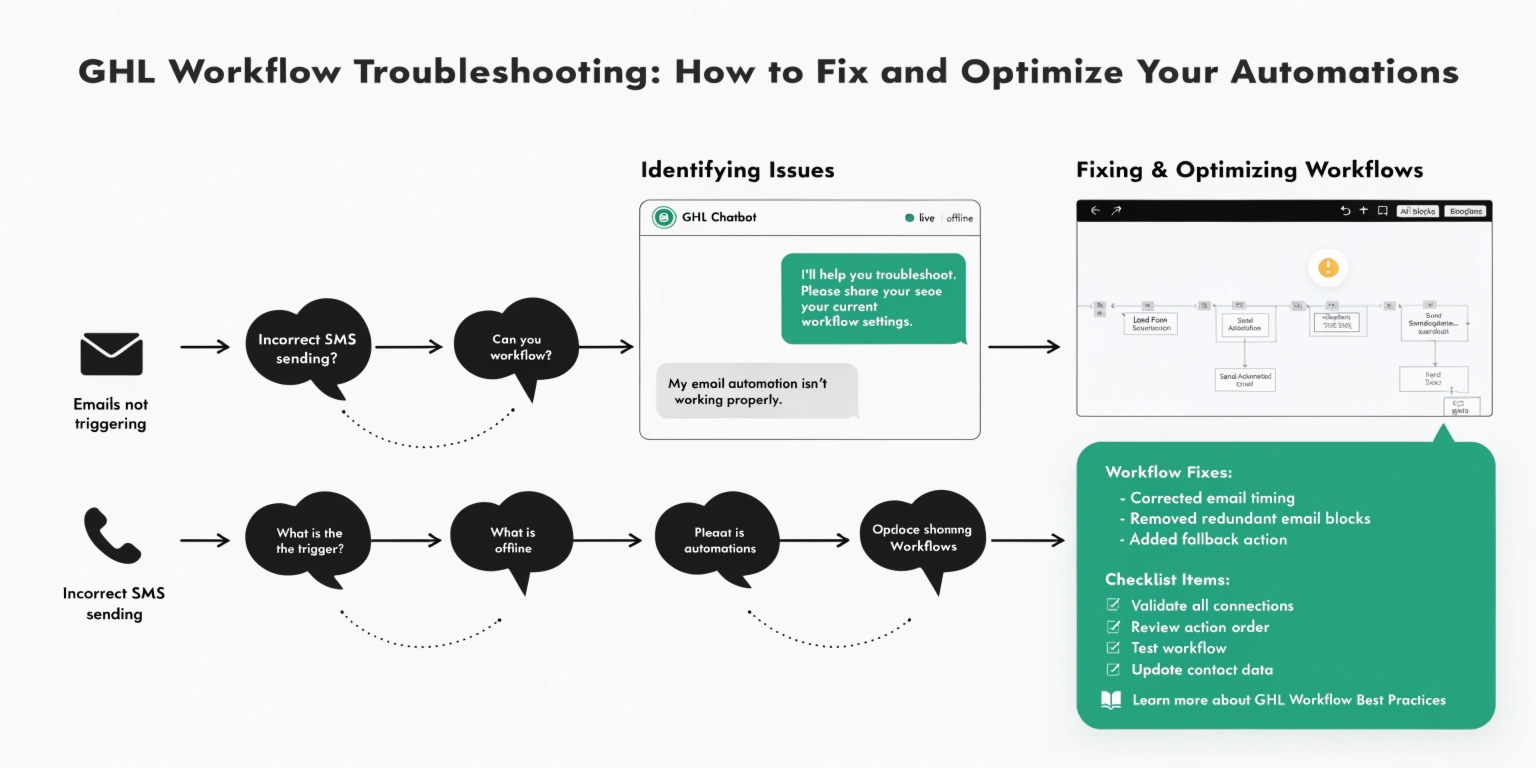
GHL Workflow Troubleshooting: How to Fix and Optimize Your Automations
Even the best GHL experts run into problems. A workflow might not fire, or a lead might get stuck in a “loop.” In 2026, with AI agents and complex logic, knowing how to debug is a superpower.
This guide will show you how to find errors fast and make your workflows run like a well-oiled machine.
Why Isn’t My Workflow Triggering?
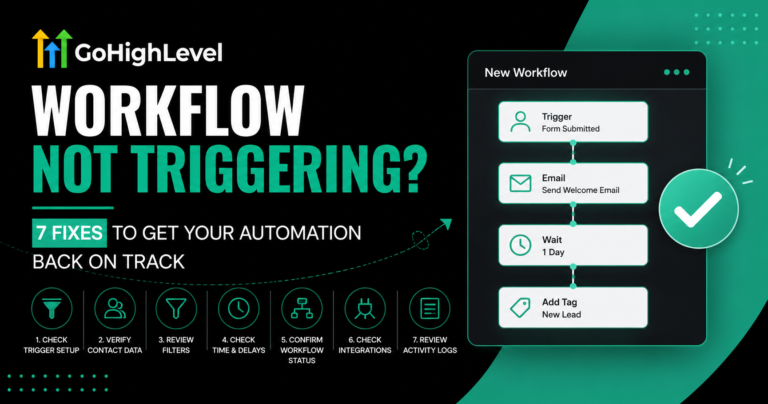
If your workflow doesn’t start, check these three common issues first:
Read this: Mastering GHL Workflow: The 2026 Guide to Business Automation
Using the “Execution Logs” (The X-Ray Vision)
The Execution Logs are your best friend. They show you every single step a contact took.
- Open your workflow.
- Click the Execution Logs tab at the top.
- Search for the contact’s name.
- Look for a Red Icon. This tells you exactly where the “break” happened.
Pro Tip: In 2026, GHL added “Deep Links” in the Conversations tab. If a message fails, you can click “View Workflow” right from the chat to see the log instantly.
Common Workflow Errors and Fixes
| Error Type | What it Means | The Quick Fix |
| Race Condition | Two actions happened in the same second. | Add a 1-minute Wait Step between actions. |
| Invalid From Number | Your SMS provider (Twilio/LC) is disconnected. | Check your Phone Settings and A2P registration. |
| Email Bounce | The lead’s email address is fake or broken. | Enable Email Verification on your forms. |
| Stalled “Wait” Step | The lead is stuck waiting for a specific date. | Check the “Event Start Date” in the contact record. |
Understanding “Race Conditions”
A “Race Condition” happens when GHL tries to do two things too fast. For example, it tries to Add a Tag and Send an Email at the exact same time. Sometimes the tag doesn’t “stick” because the system is too busy sending the email.
The 2026 Solution: Always add a Wait: 1 minute step before critical logic steps. This gives the database time to catch up.
How to Optimize for Speed and Scale
As your agency grows, simple workflows can become messy. Here is how to keep them clean:
Use “Go To” Events
Instead of building five different paths for the same result, use the Go To action. It acts like a portal. It sends a contact from one part of the workflow to another. This keeps your “map” looking neat.
Version History
Did you break a workflow that was working perfectly? Don’t panic.
The “Stop on Response” Feature
For sales workflows, always turn on Stop on Response. If a lead replies “Stop” or “I’m interested,” you don’t want the bot to keep sending them automated “Are you there?” messages. It makes you look human and professional.
Read this: How to Build an AI Appointment Booking Bot in GHL (2026 Guide)
Advanced Optimization: Workflow AI Assistant
In 2026, you can talk to GHL’s Workflow AI Assistant. If you aren’t sure how to build a path, just type: “Help me build a path that only sends a text if the lead hasn’t booked in 2 days.” The AI will automatically place the steps in the builder for you.
Frequently Asked Questions (FAQs)
Why did my contact exit the workflow early?
This usually happens because of a “Goal” step. If a lead reaches a goal (like booking an appointment), GHL can pull them out of the nurture sequence automatically.
Can I see who is currently “Waiting” in a workflow?
Yes. Go to the Enrollment History tab. It will show you a list of every contact and which step they are currently sitting on.
What is the “History” tab?
The History tab shows you who edited the workflow. If a team member changed a trigger and broke it, you can see exactly who did it and when.
How do I fix “A2P 10DLC” errors?
If your texts aren’t sending, it is likely a registration issue. Ensure your business profile is verified in the Trust Center under Settings.
Summary
Troubleshooting is part of the process. Start by checking your Execution Logs, watch out for Race Conditions, and use Version History to stay safe. A clean, optimized workflow doesn’t just work better—it provides a better experience for your leads.