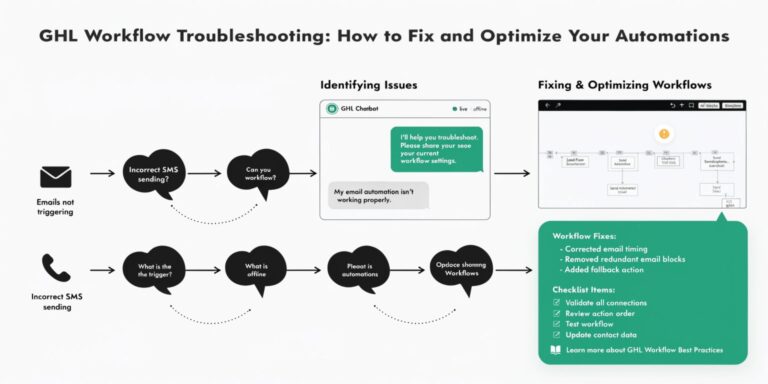
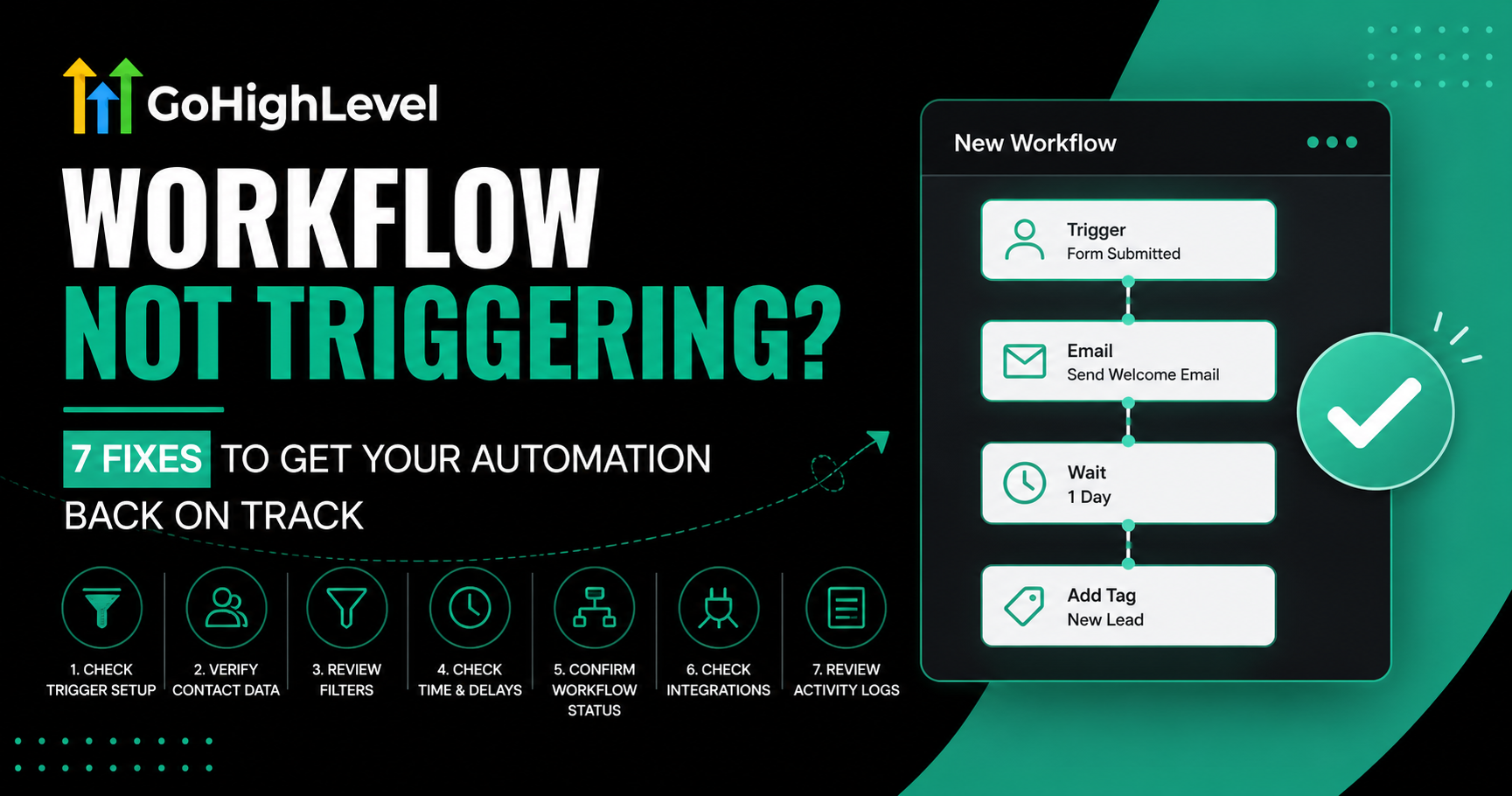
GoHighLevel Workflow Not Triggering? 7 Fixes to Get Your Automation Back on Track
There is nothing more frustrating than building a complex, beautiful automation only to find that your leads are hitting a “dead end.” When a GoHighLevel workflow is not triggering, it doesn’t just halt your operations—it costs you money in missed opportunities and delayed responses.
In 2026, with the introduction of advanced logic and GHL API Integrations, there are more moving parts than ever. However, 90% of workflow failures come down to a handful of common settings.
In this guide, we’ll walk through the exact checklist our experts use at GHLWorkflow to diagnose and fix non-firing automations in seconds.
Check the “Allow Multiple” Toggle
This is the #1 culprit. By default, GoHighLevel prevents a contact from entering the same workflow more than once to prevent spamming.
Verify the “Published” Status
It sounds simple, but even veteran GHL power users forget this. A workflow in “Draft” mode will never fire, regardless of how perfect the triggers are.
Audit Your Trigger Filters
Triggers are often too specific. If you set a trigger for “Form Submitted” but add a filter for “Form is [Specific Form Name],” and then you change the form on your landing page, the workflow will break.
The “DND” (Do Not Disturb) Barrier
If a contact has been manually marked as DND, or if they have previously unsubscribed, GHL will block the workflow from sending SMS or Emails.
“Stop on Response” Logic
Inside the workflow settings, there is a feature called “Stop on Response.”
Overlapping Workflow Triggers
In 2026, many agencies use complex GHL Master System architectures. Sometimes, one workflow might be removing a tag that another workflow requires to fire.
Wait Steps and “Condition” Timeouts
If your workflow uses “Wait for Event” logic (like waiting for a reply or an appointment), it may look like it’s not triggering when, in reality, it is simply waiting for a condition that hasn’t been met.
How to Test Like a Pro
Don’t guess—test. Use the “Test Workflow” button and select a “Test Contact.”
Comparison: Basic Fixes vs. Advanced Optimization
| Issue Type | Symptom | Professional Fix |
| Simple | Workflow remains in Draft | Toggle to Published |
| Logic | Contact only enters once | Enable “Allow Multiple” |
| Data | Wrong Form/Tag selected | Broaden Trigger Filters |
| Advanced | API call failing | Check GHL API Integration logs |
Frequently Asked Questions (FAQ)
Can a workflow trigger another workflow?
Yes. You can use the “Add to Workflow” action. However, be careful of “Logic Loops” where two workflows trigger each other indefinitely.
Does the “Time Window” setting affect triggers?
No. The Time Window in settings only controls when Actions (like sending an SMS) happen. The Trigger will still fire, but the actions will “Wait” until the next available window.
Why is my “Missed Call Text Back” not working?
Ensure your GHL Automation Setup includes the “Inbound Call” trigger with the filter “Call Status: Missed.”
Summary: Stop Guessing, Start Automating
Most “non-triggering” issues are resolved in the Settings tab. By following this 7-step checklist, you ensure your GHL Workflow Design is robust and reliable.